TPGMobile
  • Destinations
    • eSIM Destinations
    • Travel Guides
  • Travel Guides
  • Choose Your Data Plan
  • Global
  • Podcasts
  • Subscriptions
  • Setup & Usage
  • eSIM Guide
  • Affiliate
  • 🚀 Try eSIM Free
  • 🎁 Refer & Earn
Log in
  • Currency
  • 🇺🇸 USDUS Dollar
  • 🇪🇺 EUREuro
  • 🇬🇧 GBPBritish Pound
  • 🇦🇺 AUDAustralian Dollar
  • 🇨🇦 CADCanadian Dollar
  • 🇸🇬 SGDSingapore Dollar
  • 🇯🇵 JPYJapanese Yen
  • 🇦🇪 AEDUAE Dirham
  • 🇺🇸 USD – US Dollar
  • 🇪🇺 EUR – Euro
  • 🇬🇧 GBP – British Pound
  • 🇦🇺 AUD – Australian Dollar
  • 🇨🇦 CAD – Canadian Dollar
  • 🇸🇬 SGD – Singapore Dollar
  • 🇯🇵 JPY – Japanese Yen
  • 🇦🇪 AED – UAE Dirham
Log in
  1. Home
  2. Installing eSIM on iPhone

How to Install an eSIM on an iPhone

Your eSIM works with iPhone XS or later, including iPhone 11, 12, 13, 14, 15, 16, 17, and future models. Use these steps to activate your eSIM QR code and get online in under 2 minutes.

Also available: Install eSIM on Android

Before you begin: Your iPhone must support eSIM (iPhone XS or later) and be carrier-unlocked. A Wi-Fi connection is required to download the eSIM profile.

Adding an eSIM to Your iPhone

1
Connect to Wi-Fi
Make sure you're connected to Wi-Fi before you start. You'll need internet access to download the eSIM profile.
2
Open the email on your iPhone
Find the TPG Mobile email containing your QR code. Open it directly on your iPhone — no second device needed.
3
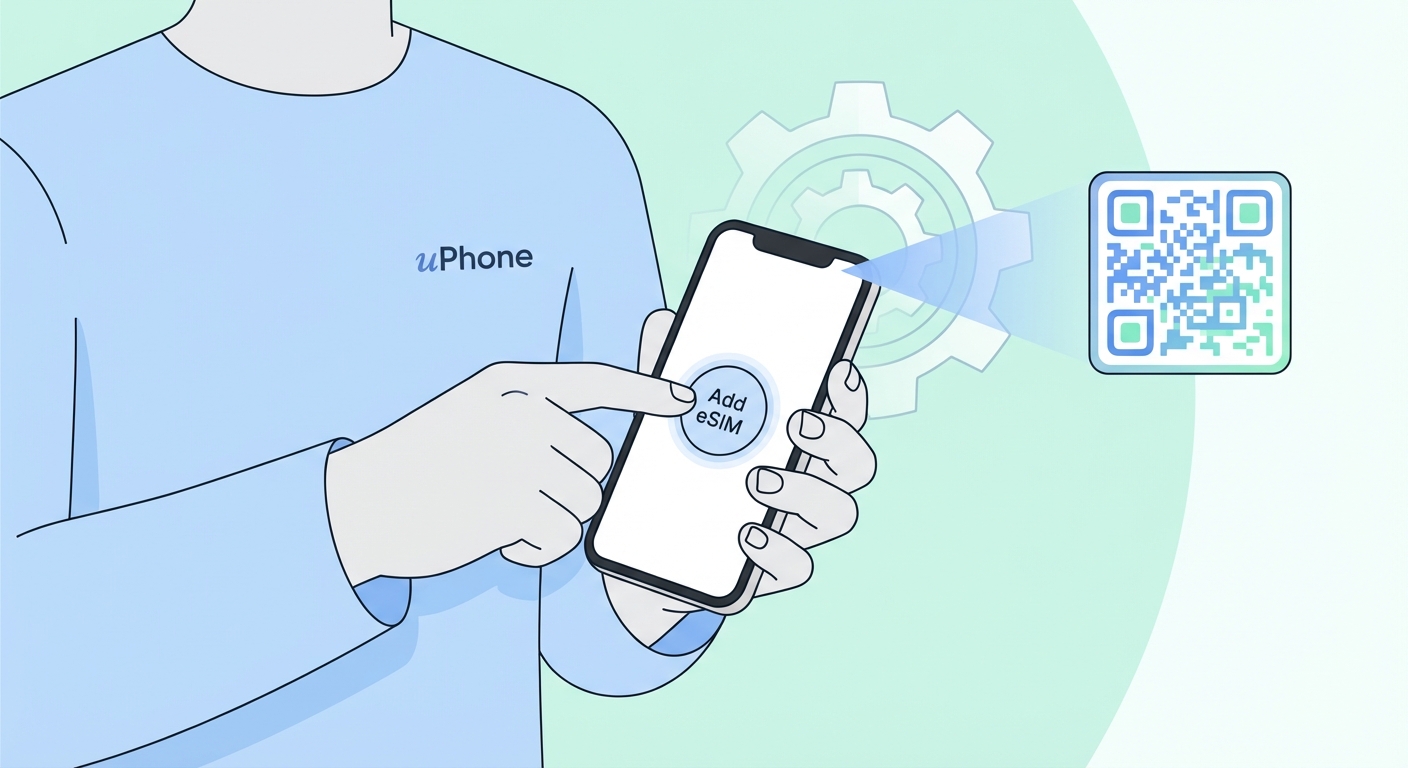
Press and hold the QR code image
Press and hold your finger on the QR code image in the email. A menu will appear — tap "Add eSIM". This is the quickest method on iPhone.
4
Alternative: use Settings
If the press-and-hold option doesn\'t show, head to Settings → Cellular → Add eSIM → Use QR Code and scan the code with your camera.
5
Label and activate
Tap Continue and then Add Cellular Plan. Name it after your destination (e.g. "Japan trip"). Switch it on when you arrive.
Fastest way on iPhone

Open the TPG Mobile message on your iPhone. Then press and hold the QR code with your finger until a pop-up appears, then tap it "Add eSIM" — the eSIM installs in seconds, with no need to open Settings.

Tip

The eSIM can be installed before your trip and switch it on when you land. Go to Settings → Cellular → your eSIM plan → toggle it on or off as needed.

Troubleshooting eSIM Issues on iPhone

Make sure you open the email on your iPhone directly. If the code has expired, reach out to support for a new one.

Your device may be carrier-locked or incompatible with eSIM. Go to Settings → General → About → EID — if no EID appears, your device doesn\'t support eSIM. If it does, contact your carrier to unlock it.

Turn on Data Roaming for the eSIM line. Open Settings → Cellular → select your eSIM → switch Data Roaming on.

An eSIM profile is tied to the device where it was first installed. If you need to move it, contact our support team to arrange a replacement.

If you are using an Android phone, see the Android installation guide →

24/7 Support

24/7 Support

Need assistance? Our support team is on live chat and email, with a typical response time under 2 minutes.

Contact support Browse FAQs
How to install eSIM on iPhone
TPGMobile

Data abroad without the roaming bill. eSIM plans for 150+ countries, sent to your inbox in minutes. Your physical SIM stays put.

Top Destinations
  • 🇲🇽 Mexico
  • 🇫🇷 France
  • 🇮🇹 Italy
  • 🇪🇸 Spain
  • 🇯🇵 Japan
  • 🇬🇧 United Kingdom
  • 🇨🇦 Canada
  • 🇹🇭 Thailand
Regional eSIMs
  • 🌍 Global eSIM
  • Europe eSIM
  • eSIM for Eastern Europe
  • Asia eSIM
  • Southeast Asia eSIM Plans
  • eSIM for the Middle East
  • Africa eSIM
  • eSIM for North America
  • eSIM for Latin America
  • Caribbean eSIM
  • Pacific eSIM
  • South Asia eSIM Plans
Products
  • All Plans
  • Global Plan
  • Country Plans
  • Region Plans
  • ✦ Gold Membership
  • 🎁 Refer & Earn
  • 🚀 Try eSIM at No Cost
  • Subscriptions
eSIM Guides
  • Understanding eSIM
  • eSIM or Physical SIM?
  • Top eSIM Providers
  • Data Plans for eSIM
  • Coverage by Country
  • eSIM Troubleshooting
Travel Guides
  • All Destinations
  • Travel Podcasts
  • Guide to China Travel
  • Travelling to Japan
Support
  • See How It Works
  • Installing Your eSIM
  • Setting Up eSIM on iPhone
  • Setting Up eSIM on Android
  • FAQ
  • Contact Support
  • Device Compatibility
VPN Guides
  • Using a VPN While Travelling
  • How a VPN Works
  • VPN Basics
  • Top VPN Providers
  • VPNs in China
  • How to Set Up a VPN
  • eSIM & VPN Explained
  • Staying Safe on Public Wi-Fi
  • When You Might Need a VPN
  • Common VPN Myths
  • VPN for Watching Abroad
  • VPN for Work Trips
  • Understanding VPN Protocols
  • VPN, Proxy, or Tor?
  • Set Up VPN on iPhone
  • Set Up VPN on Android
Company
  • About Us
  • Contact Us
  • Affiliate Programme
  • Affiliate Help
  • Affiliate Terms
  • Careers
Legal
  • Privacy Policy
  • Terms & Conditions
  • Refund Policy
  • Cookie Policy

© 2026 TPG Mobile. We reserve all rights.

Visa Mastercard American Express Private & Encrypted
Travel worry-free with TPG Mobile

Before you go,
get 5% off
your first order!

Subscribe and receive your discount code instantly.

By subscribing you agree to receive marketing emails. Unsubscribe anytime.

Your code is WELCOME5 — enjoy 5% off!
Travel worry-free with TPG Mobile
✈️
Travel
worry-free
with TPG Mobile.
1
TPG Mobile Support
AI assistant · usually replies instantly

What's your email?

We'll send a transcript and follow up if needed.

Please enter a valid email.

How can we help?