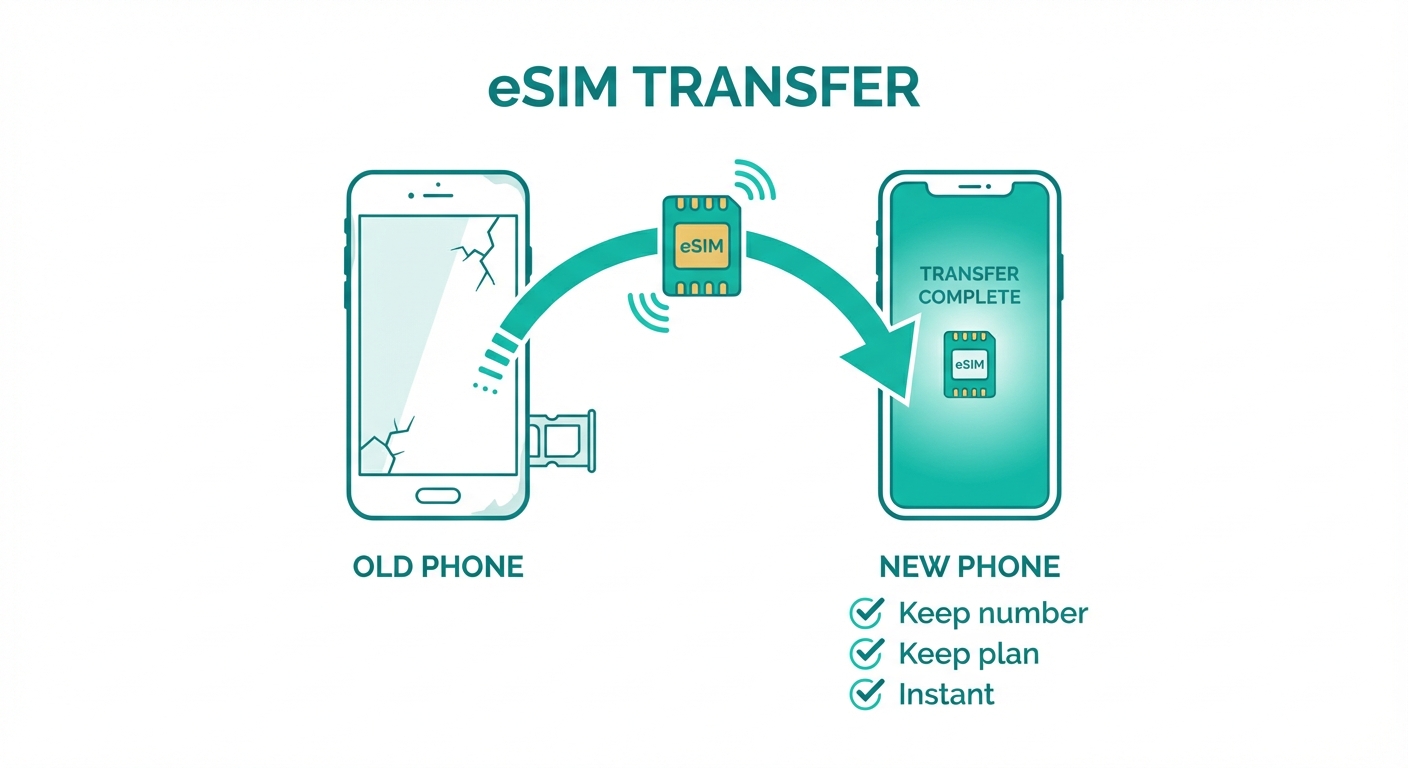
Relocating Your eSIM to a New Phone
A practical guide for iPhone-to-iPhone, Android-to-Android, and cross-platform eSIM transfers when you upgrade your device.
Before you start, check these 3 things
Most eSIM plans allow only one transfer. Check with your provider before doing anything — they'll confirm whether a transfer is possible and what steps are involved.
Moving between iPhones
With iOS 16 and later, Apple's Quick eSIM Transfer lets you move your eSIM without a new QR code.
Do not delete from your old phone until you have verified the eSIM works on the new device.
Android to Android transfer
Moving an eSIM between Android phones depends on the manufacturer. The general steps below work for most devices. Some Samsung models allow direct transfer through the Samsung Switch app. If you hit any snags during setup, refer to the eSIM troubleshooting guide.
Samsung tip: Galaxy devices running One UI Some Samsung phones running 5+ may let you transfer an eSIM directly using Samsung Switch. Go to Settings > Accounts and backup > Samsung Switch on your old phone.
Switching between iPhone and Android
eSIMs cannot be moved automatically across platforms. You'll need to follow the manual route, which involves getting a fresh QR code from your provider.
Note: There's no way to transfer an eSIM automatically between iOS and Android. When moving across platforms, always use the manual QR code method.
What happens if I reset my phone to factory settings?
On most phones, the eSIM profile lives in a dedicated secure chip, so a factory reset does not remove it. After you restore your device, head to Settings > Cellular — your plan should still be there. Once the new phone is ready, think about using Dual SIM so you can run your home number and a travel eSIM side by side.
If the eSIM does not show up after the reset, get in touch with your provider. They can issue a new QR code linked to your original order.