How to Get an eSIM QR Code Without Exposing It
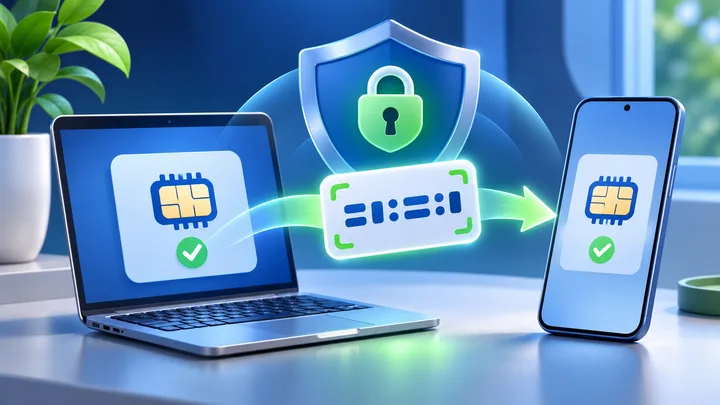
An eSIM QR code is a setup item, not a travel photo. Use this guide to move it from your provider to your phone with fewer chances for it to leak.
Key points
- Get the code only through the provider’s real website, app, email, or support channel.
- Keep the full QR code out of screenshots, shared albums, public chats, and social posts.
- Check that the new eSIM appears on the phone before you remove the message that carried the code.
- If the code may have leaked, stop scanning it and ask the provider whether it must be replaced.
A QR code can make eSIM setup quick. It can also be copied in a second. The square image may contain the details your phone uses to request an eSIM profile. That is why it should be handled like private setup information.
This guide focuses on the handoff. It starts when the provider sends the code and ends when the profile is shown in your phone settings. It does not assume that every code can be used twice. Provider rules differ, so the safe plan is to protect the first code and avoid test scans on other phones.
Make sure the code came from the real provider
Start from the provider’s website or app. If the code comes by email, check the full sender address. A familiar logo is not enough. CISA warns that false messages can copy a trusted brand and push people to open a link or attachment.
Do not search the web for a replacement QR code. A real eSIM code is linked to a provider order or account. A random code from a forum, image search, video, or social post is not a safe substitute.
- Open the order from a bookmark or address you typed yourself.
- Match the order number and plan name with your receipt.
- Check the country list and start rule before scanning.
- Use the provider’s published support page if the message looks wrong.
When you are ready to buy, use the official TPG Mobile destination mobile eSIM plans page or review regional eSIM plans for a trip with several stops.
Know which QR code actions create the most risk
The code is safest when it moves through as few places as possible. Use this risk map before you copy, print, or send it.
A screenshot is easy to forget. It may enter cloud photo backup, a shared family album, or a laptop photo folder. Printing avoids some cloud copies, but the paper can still be seen or lost. Pick one method. Keep control of it from start to finish.
Use the safest method available on the phone
If the QR code is on another trusted screen, scan it with the phone that needs the eSIM. Apple and Google both tell users to follow the setup flow supplied by the phone and carrier. Menu names can differ by phone and software version.
An iPhone with iOS 17.4 or later may let you press and hold a provider QR code shown in the default email app or browser, then choose Add eSIM. Apple also supports a provider link, provider app, or manual details when the carrier offers them. On a Pixel, Google points users to Settings, Network and internet, SIMs, Add SIM, then Set up an eSIM.
Use the method your provider gave you. Do not turn a QR code into manual text with an online decoder. That creates another copy of private setup data and adds a service you do not need.
If you want to learn the phone menus first, eligible devices can use the TPG Mobile free eSIM test before a paid trip.
Move the code to a second screen without sending it around
You may need a second screen when the phone cannot read a QR code displayed inside the same app. A computer or tablet you control is a better choice than sending the image to another person.
- 1Open the provider message on your own computer or tablet.
- 2Make sure people nearby cannot see the screen.
- 3Open the eSIM setup screen on the phone.
- 4Scan the code once and follow the phone prompts.
- 5Confirm that the new line appears in SIM settings.
A work computer can be a poor choice because company tools may log downloads or keep email copies. A public computer is worse. If you do not own or control the second screen, ask the provider for a supported same-phone link or manual setup method.
Help another traveller without taking their code
It is fine to guide a family member through the menus. It is not necessary to keep their QR code on your phone. Let the traveller sign in on their own device or show the code on a screen they control.
If you must hold a paper copy for a child or an older relative, write the traveller’s first name on the back. Do not write a passport number, full phone number, or account password beside it. Return or destroy the paper after the correct phone shows the profile.
For a group trip, choose one person to keep order numbers and support links. Each traveller should still keep control of their own activation image. A TPG Mobile travel eSIM may simplify a wide route, but it does not make one QR code safe to share across several phones.
Verify the profile before removing the code
Do not delete the order email the instant the scan ends. First open the phone’s SIM settings. Check that a new line is listed. Give it a clear name such as Trip. Read the provider’s start rule before you turn the line on or use data.
Installed does not always mean connected. A travel eSIM may wait for a covered network at the destination. The useful pre-trip proof is that the profile appears in settings and the phone did not show a setup error.
- The plan name or new line is visible in SIM settings.
- The order number is saved as text, not only inside the QR image.
- The provider support link is available offline.
- The code is no longer in a shared folder or device.
- Any paper copy is stored privately or destroyed.
Act quickly if the QR code may have leaked
Do not post a cropped version to ask whether it is safe. Do not scan it on a spare phone as a test. Contact the provider through a trusted channel and explain where the image went, who could see it, and whether any phone has already installed the profile.
The provider can check the order state. It can tell you whether the code is unused, already linked to a device, or needs to be replaced. Do not assume that deleting a social post removed every saved copy.
Change the password on the account or email only if that account may also have been opened by someone else. Use a strong screen lock and account security as normal. The QR code is one part of the setup. Your email, provider login, and phone still need their own protection.
Sources checked
These primary and official sources were checked before this article was written.
Get Your eSIM QR Code Without Exposing It
The shortest safe path is also the easiest to remember. Get the code from the real provider. Show it on a screen you control. Scan it only with the phone that needs the plan. Confirm the profile in settings. Then remove extra copies.
If any part of that path is unclear, stop before the scan and ask the provider. A short delay is easier to fix than a private setup code that has spread beyond your control.