How to Verify an eSIM Download Before Closing the Setup Screen
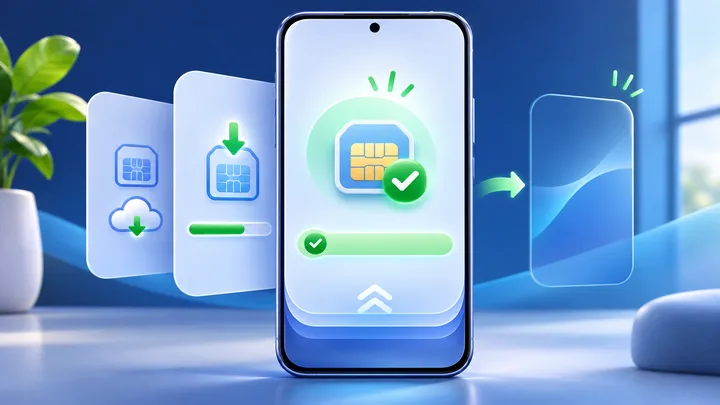
A setup screen can disappear before you know what worked. Check the phone’s SIM list, line state, and plan details while the evidence is still in front of you.
Key points
- A new line in the phone’s SIM settings is stronger proof than a short success message.
- Download, activation, and mobile service are separate stages. They may not finish at the same time.
- Save the order number and any error text, but keep the full QR code private.
- Do not delete or rescan the profile until you know whether the first download completed.
The last eSIM setup screen may show Done, Added, Activating, or a provider name. Then it closes. If you did not check the result, it can be hard to tell whether the profile reached the phone or whether the process stopped earlier.
Use the checks below before you leave Wi-Fi or clear the provider message. They work as an evidence ladder. Each step proves a little more than the one before it.
Do not treat download, activation, and service as one event
An eSIM setup can pass through three stages. First, the phone downloads a profile. Next, the provider allows that profile to use the plan. Last, the phone joins a covered mobile network.
A travel profile can be stored correctly at home and still show no service. That may be normal when the plan has no partner network where you are. It is not proof that the download failed.
Read the start rule before you test data. Some plan periods begin at installation, some at activation, and some when the profile first connects. Use the rule shown for the exact plan you bought.
Pause on the final setup screen
Read the whole screen before you tap Done. Look for the provider name, plan label, phone line, or an error. If the screen offers SIM preferences, do not rush through them. The phone may be asking which line should handle data, calls, or texts.
Write down useful text. A screenshot can help when it contains only a normal status or error. Do not capture and share a screen that shows the full QR code, activation code, account password, or private device ID.
- Note the exact final message.
- Record the time and the Wi-Fi network used.
- Save the provider order number.
- Check whether the phone asks for a line name.
- Read any warning before choosing a default SIM.
This short pause creates a record. It also stops a tap on Done from turning a clear error into a vague memory.
Open the SIM list and look for a new line
Leave the setup flow only after you know where to check the result. On iPhone, open Settings and then Cellular or Mobile Service. Apple says the new line should appear below eSIMs. On a Pixel, open Settings, Network and internet, then SIMs. Samsung phones place eSIM controls under Connections and SIM manager.
Menu names change with the phone, region, and software version. Search Settings for SIM, eSIM, Cellular, or Mobile network if the listed path is different.
Match the new line with the plan you just added. A generic label such as Secondary or Mobile Data is common. Rename it to Trip, Work, or the destination so it is not confused with the home line later.
If no new line appears, return to the provider instructions. Do not assume a second scan is safe. First ask whether the code is unused and whether the order is waiting for another step.
Fill in a six-part download evidence card
Use this card while the setup is fresh. It gives support the facts needed to separate a phone problem from an order or network problem.
Provider, plan name, and order number.
Full model, software version, and lock state.
Time, internet link, and final setup message.
Line name shown in the phone’s SIM list.
Start rule, end rule, and covered countries.
What was tested and whether the destination is covered.
Do not place the QR code inside this card. The support team can ask for the order number or device IDs through a private channel if it needs them.
Check whether the line is on without spending trip data
Apple’s iPhone guide uses the Cellular screen to verify that the new line is listed and turned on. Google’s Pixel guide ends setup by returning to Settings and choosing SIM preferences. Those checks prove that the phone knows about the profile.
They do not require a large data test. If the provider says the plan should wait until arrival, stop after checking the line and its label. Keep the home SIM set for normal use until the trip.
If a pre-trip connection is allowed, turn Wi-Fi off for a moment and load one small page. Watch which line is selected for mobile data. Then turn Wi-Fi back on. Do not stream video or run repeated speed tests just to prove that a profile exists.
Eligible phones can use the TPG Mobile free eSIM trial to learn this flow before a paid journey.
Review the default line choices before you finish
A downloaded profile can be correct while the phone still sends data through the wrong SIM. Check the default mobile data line. If the travel line should not work until arrival, leave the home line selected for now and write down what must change later.
Also review automatic data switching. That feature can move data to another line when the chosen one is weak. Turn it off if the home SIM must never use roaming data abroad.
Choose a plan that covers the full route before setup. Use TPG Mobile eSIM packages by country for one destination or compare regional coverage for several stops. A correct download cannot add a country that the plan leaves out.
Keep the right evidence when setup stops
If the phone shows an error, copy the words exactly. Apple advises iPhone users who still cannot set up an eSIM to note the error and gather the phone number, provider account details, IMEI, and EID before contacting the provider.
Share account details only in a trusted support channel. Do not post an EID, full QR code, or account PIN in a public forum. A public screenshot can solve one question while creating a new security problem.
Keep the Wi-Fi link stable. Restart once only after the maker’s guide calls for it. Do not delete a profile that has appeared in settings. A deleted travel profile may need a new code, and the original code may not be reusable.
For a long route, review TPG Mobile multi-continent eSIM coverage before buying several profiles. Fewer profiles can make the SIM list easier to read, but the actual country list and plan dates still decide whether it fits.
Sources checked
These primary and official sources were checked before this article was written.
Verify the eSIM Download Before Closing the Setup Screen
Use three pieces of proof. Save the final setup message. Find the new line in SIM settings. Check the line state and plan start rule. Together, those facts show far more than a quick Done screen.
If the new line is missing, stop before a second scan. If the line is present but cannot connect outside the covered area, keep it and wait. If the line should work where you are but does not, take the evidence card to the provider.