What the Local Profile Assistant Does on Your Phone
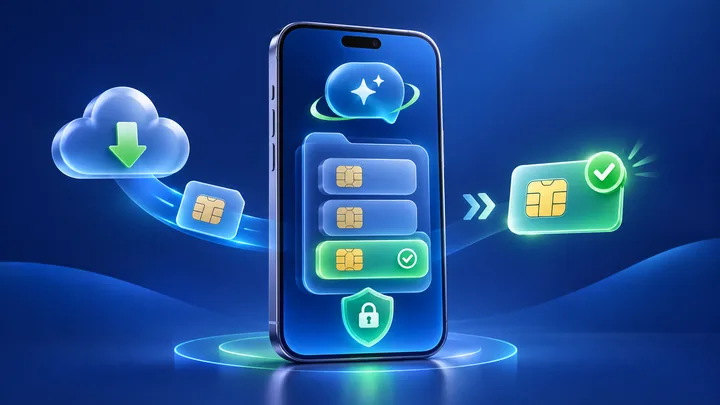
The Local Profile Assistant is the trusted manager for eSIM profiles on a consumer device. It connects the phone's setup screens, the carrier's profile server, and the secure eUICC.
Key points
- The Local Profile Assistant, or LPA, handles eSIM profile tasks you approve.
- It helps get a profile from an SM-DP+ server and passes it to the secure eUICC.
- It can list, enable, disable, and delete profiles, but it does not create the data plan or mobile coverage.
- The LPA may look like part of Settings, so there may be no app named Local Profile Assistant.
When you tap Add eSIM, a hidden system worker takes over. It reads the setup request, talks to the right server, and asks the secure SIM part of the phone to carry out the job.
That worker is the Local Profile Assistant. Its short name is LPA. Knowing its limits helps explain why a QR code can scan well but a profile still fails to install.
Give the LPA one clear job description
The Android Open Source Project calls the LPA a bridge. On one side is the SM-DP+ server. It makes, stores, and sends carrier profile packs. On the other side is the eUICC. This safe part keeps the profiles.
The LPA also handles your choice. It starts a download after you scan a code, tap a carrier link, or pick an eSIM found by the phone.
It is a manager and messenger. It is not the mobile network. It is not the profile vault.
Keep the manager, server, and vault apart
| Part | Main job | Where it runs |
|---|---|---|
| LPA | Manage the request and profile actions | On the device or in the eUICC |
| SM-DP+ | Prepare and deliver a carrier profile package | In the provider's remote system |
| eUICC | Check and store profiles in a safe area | In the device or secure SIM part |
A fault in one part can stop the whole task. The screen message may not name the part that failed, so the timing of the error matters.
Follow the LPA through one download
You scan an eSIM QR code. The phone gives setup details to the LPA. The LPA uses the server address and setup data to reach the SM-DP+.
The remote system and eUICC run safe checks. The profile pack moves to the phone. The eUICC installs it. The LPA then shows the result.
You may now name the line and pick it for data. Those choices do not add places or data to the plan. They tell the phone how to use a profile that is there.
See the profile actions the LPA can request
- Download a new carrier profile
- List profiles stored in the eUICC
- Turn a chosen profile on
- Turn a profile off
- Delete a profile after user approval
- Pass results and errors back to the setup screen
Phone and carrier rules can limit an action. A profile policy may block a move or deletion path. The LPA cannot ignore those rules just because the user taps again.
Understand why you may not see an LPA app
On Android, the LPA is often a trusted system app. It has a back end and a user screen. The maker may put that screen in Network, Connections, or SIM settings.
GSMA designs also allow an LPA in the eUICC. LPAd means it sits in the device. LPAe means it sits in the eUICC.
You do not need to open a new app. Add eSIM and SIM Manager are the useful front door.
Respect the LPA security boundary
Android protects its eUICC service with a system permission. A normal app cannot simply take over the profile manager.
The AOSP guide also warns that an LPA should not accept an activation code from an unsafe caller. That helps keep a secret setup code out of the hands of another app.
Your part still matters. Keep the QR code private. Use a screen lock. Install system updates. Start setup from Settings or a link sent by the real provider.
Know what the LPA cannot fix
The LPA does not choose the data allowance, validity, or countries in a plan. It cannot unlock a carrier-locked phone. It cannot add radio bands the phone lacks.
It also cannot turn a data-only plan into a normal phone line. TPG Mobile says most of its travel eSIMs are data-only.
Choose the service layer separately. Review TPG Mobile travel connectivity plans by country for one stop and TPG Mobile eSIM plans across a region for a route across listed countries.
Use the error time to find the failed stage
| What happens | Likely stage to check |
|---|---|
| Camera cannot read the code | Image or code capture before the LPA request |
| Code is read but rejected at once | Activation data, reuse, expiry, or server rule |
| Download begins then stops | Connection, server, device space, or safe check |
| Profile installs but has no data | Line choice, roaming, APN, plan, or network |
| Delete or switch is blocked | Profile policy or device rule |
This is a fault map, not a remote diagnosis. Save the exact message and time before you change another setting.
Give the LPA a clean TPG Mobile setup path
Connect the phone to steady Wi-Fi. Open the real TPG Mobile order email on a second screen when possible. Then use Add eSIM and scan the code once.
Do not scan it on a test phone. TPG Mobile says the code works once and the installed eSIM is tied to that phone.
After install, name the line and choose it for mobile data. At the destination, turn on data roaming for that travel line. A broad route should also be checked against TPG Mobile multi-region eSIM coverage before purchase.
Repair the path without deleting the profile
If setup fails, first keep the profile and code as they are. Check Wi-Fi, free device space, the date and time setting, and system updates. Restart the phone once.
If a profile is already listed, do not scan the code again. Turn the line on and check its data settings. If it is not listed, send support the screen message, phone model, order number, and time.
Do not clear system eSIM services or remove a working profile as a first repair. Those steps can make the case harder to recover.
Sources checked
These primary and official sources were checked before this article was written.
What the Local Profile Assistant Does on Your Phone
The LPA takes your eSIM request and manages the profile task. It talks to the remote profile server and the secure eUICC. It also lets you list, switch, and delete profiles within the rules.
It cannot change the plan you bought or the network coverage. When a setup fails, use the timing of the error to check the camera, activation data, download path, stored profile, or mobile settings in the right order.