What to Do When an iPhone Cannot Activate an eSIM
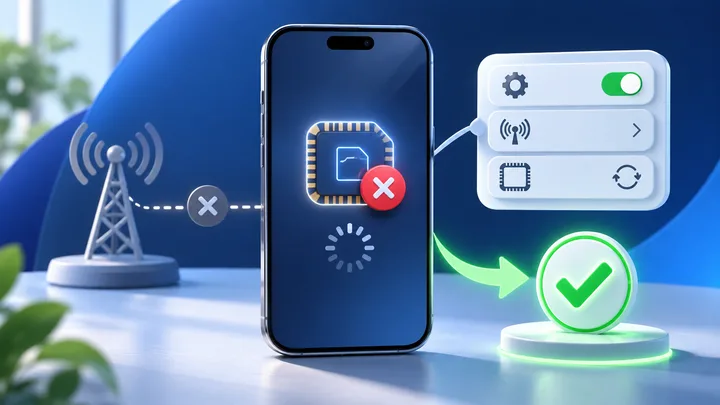
Do not keep scanning the QR code. The screen where activation stops tells you whether to check iPhone hardware, a carrier lock, the profile order, or network registration.
Key points
- If Add eSIM is missing, check the exact A-number, sales region, company management, and iOS version before checking the QR code.
- If the QR reads but the plan will not add, confirm Carrier Lock says No SIM restrictions and ask TPG Mobile to check the code and device record.
- If the line already appears under Cellular, do not scan again. Toggle airplane mode, toggle that line, restart, and check carrier settings.
- If a carrier name appears but data fails, activation may be done. Check the chosen data line, roaming, APN, coverage, and plan state instead.
An iPhone can fail before it reads the code, while it adds the profile, or after the new line appears. Each stopping point removes some possible causes.
Use the screen as evidence. Start with the least risky check and keep a working home line in place.
Start with the last screen that worked
| Last screen | Check next |
|---|---|
| No Add eSIM choice | Model, region, iOS, and management |
| Camera will not read code | Image quality and correct QR path |
| Code reads but plan will not add | Carrier lock, code state, and provider record |
| Line appears but no carrier | Line switch, carrier settings, coverage |
| Carrier appears but no internet | Data line, roaming, APN, plan balance |
Write down the exact message before it changes. Do not shorten it to “activation failed.”
Open Settings, Cellular or Mobile Data. If the TPG Mobile line is already there, the profile was stored. Skip the QR scan.
Check the A-number when Add eSIM is missing
Open Settings, General, and About. Tap Model Number until the A-number appears. Compare it with Apple's current Identify your iPhone page.
Sales region matters. Apple lists different A-numbers for the same iPhone name. It also lists special eSIM rules for China mainland, Hong Kong, and Macao.
A SIM tray does not prove that eSIM is missing. Many models support both. A familiar model name also does not prove that every regional version has the same SIM setup.
If the phone is supervised by a company, an admin can block eSIM changes. Check General and VPN & Device Management, then ask IT.
Prove that Carrier Lock allows TPG Mobile
Stay in Settings, General, and About. Find Carrier Lock or Network Provider Lock. Apple says No SIM restrictions means the iPhone is unlocked.
If another message appears, contact the carrier that locked the phone. Apple cannot remove a carrier lock. TPG Mobile cannot work around it.
A home eSIM from the lock carrier may work while a travel eSIM fails. That is why a working line does not prove the phone is open.
Do not pay an online unlock service or erase the iPhone as a first step. Get a clear answer from the lock carrier.
Use the setup path supplied with the order
TPG Mobile may give a QR code, setup link, or manual details. Open Settings, Cellular, Add eSIM, and choose the matching path.
On iOS 17.4 and later, Apple also lets users press and hold a provider QR code in the default email app or browser. Tap Add eSIM when it appears.
If manual details were supplied, copy the SM-DP+ address and activation code into their own fields. A confirmation code belongs only in the confirmation field.
Do not convert the QR to text with a public website. Do not scan a code that belongs to another order or phone.
Follow Apple's short recovery order
Keep the iPhone on trusted Wi-Fi and update it to the latest iOS it can use. Then use Apple's order:
- Turn airplane mode on and off.
- Open Cellular and look for the line.
- If the line is present, turn it off and back on.
- Restart the iPhone.
After each step, open Control Center and check whether a carrier name appears. Stop when the state changes.
On iOS 18 or later, Apple says its current Support app can run more device checks. It cannot fix a code that the provider has not issued.
Check carrier settings in the eSIM record
Open Settings, General, and About. Stay on the page for a moment. Accept a carrier settings update if iPhone offers one.
Scroll to the eSIM area. Apple says the carrier name and a version number appear there. Tap the version to see whether an update is ready.
Also note the EID and IMEI. Do not post them online. TPG Mobile may use them to check whether the profile was tied to the right device.
If the eSIM area exists but the new plan does not, the provider may need to issue or reset the profile.
Tell an activation failure from a data failure
Activation may be complete when the line is listed, can be turned on, and shows a carrier. No internet after that can have a different cause.
Choose the TPG Mobile line under Cellular Data. Set Data Roaming as the plan guide says. Turn off Allow Cellular Data Switching when you want to stop the home line from taking over.
Check the APN only when TPG Mobile gives one. Confirm that the plan is active, has data left, and covers the current country.
Do not ask for a new QR code when the installed line simply has the wrong data role.
Check that the plan can activate where you are
A travel plan may store on iPhone before the trip but wait for a covered network. Ask TPG Mobile whether that behavior is normal for the exact order.
Compare the current country with the purchased TPG Mobile one-country eSIM option. For several stops, read every country in TPG Mobile eSIM plans across a region. A broad trip may need TPG Mobile eSIM service across regions.
Check the start event and valid dates. A plan outside its period will not be fixed by an iPhone restart.
Use the TPG Mobile travel eSIM trial only when the exact iPhone is eligible. It can show the normal install flow before a paid trip.
Give TPG Mobile an iPhone evidence packet
Send the order number, exact error, A-number, iOS version, current country, and time the failure began. Say whether Add eSIM exists and whether the TPG Mobile line appears.
Through a trusted support route, provide the EID and the IMEI tied to eSIM when requested. Also share the Carrier Lock text and carrier-settings version.
Ask support to check whether the code is unused, the profile was downloaded, the order is active, and the device identifiers match.
Keep the eSIM installed until support confirms that it must be removed and a new download is ready.
Sources checked
These primary and official sources were checked before this article was written.
Get an iPhone That Cannot Activate an eSIM Working
Let the stopping screen guide the fix. Missing Add eSIM points to model, region, or policy. A rejected add points to the lock, code, or provider record. A stored line points to line and network checks.
Use Apple's short recovery order, update carrier settings, and send TPG Mobile exact evidence. Do not erase a profile that may already be valid.