Why an eSIM Gets Stuck on Activating and How to Fix It
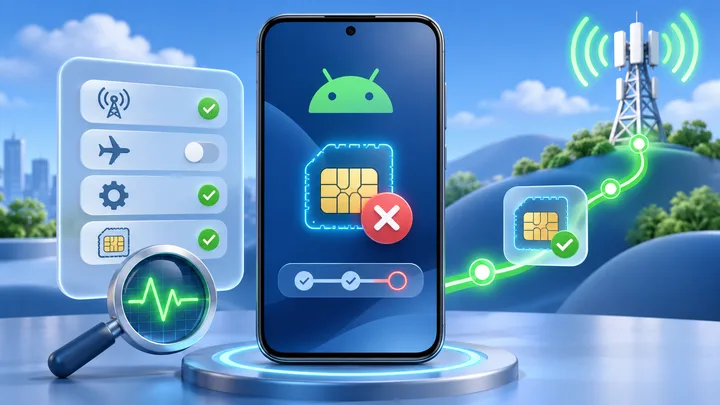
Activating can mean the phone is still downloading a profile, waiting for provider approval, or trying to join a covered network. Check which stage has stopped before changing settings.
Key points
- First check whether the TPG Mobile profile appears in the phone's SIM list. If it does, do not scan the QR code again.
- Keep stable Wi-Fi during profile setup. Then try airplane mode, line off and on, and one restart in that order.
- A travel profile may not finish network registration until it reaches a covered country. Confirm the plan rule with TPG Mobile.
- Do not delete the eSIM as a first fix. Save the error, time, EID, IMEI, order number, and screen state for support.
The word Activating hides several jobs. The phone may be fetching the profile. The provider may be checking the order. The modem may be looking for a partner network.
Those jobs need different fixes. Repeated scans can make the problem worse when the first download already worked.
Find the stage that has stopped
| Stage | What you can see | Likely owner |
|---|---|---|
| Profile download | No new line, QR or download error | Wi-Fi, phone, or code |
| Provider approval | Line appears but stays in setup | Plan record, IMEI, or provider system |
| Network registration | Line is on but has no network | Coverage, roaming, bands, or partner network |
Open the SIM list before doing anything else. On iPhone, use Settings and Cellular. On Pixel, use Network & internet and SIMs. On Galaxy, use Connections and SIM manager.
If the TPG Mobile line is listed, the phone has at least stored a profile. Do not scan the code again unless support says the download is incomplete.
Make a one-minute activation record
Write down the exact message. Note the time it began and whether the spinner changes. Record the phone model, software version, and current country.
Check the order page for plan status. Save the order number. Note whether the plan starts at install, at manual activation, or at first covered-network use.
Record whether the profile appears, whether its switch can turn on, and whether a carrier name shows. A screen shot can help if it does not expose the QR code, EID, or full IMEI.
This record prevents random changes. It also lets TPG Mobile see which stage failed.
Use low-risk fixes in a set order
- Keep the phone on stable, trusted Wi-Fi.
- Wait for the time stated in the TPG Mobile guide.
- Turn airplane mode on, wait a few seconds, and turn it off.
- If the line appears, turn that line off and back on once.
- Restart the phone once.
- Check for a system update and install it on power and Wi-Fi.
Apple's current support order includes airplane mode, line off and on, a restart, and carrier-settings check. Google tells Pixel users with lasting eSIM setup trouble to contact the carrier.
Stop after each change and look again. Several changes at once hide which one helped.
Check the setup internet link and phone time
The new eSIM cannot supply its own setup internet before the profile is ready. Use Wi-Fi or a working line.
A hotel Wi-Fi page may show a Wi-Fi icon while blocking internet until you accept its terms. Open a normal web page first. If the page redirects, finish the Wi-Fi login and retry the eSIM screen.
Set date and time to automatic. A wrong clock can break secure links. Turn off a custom VPN, DNS filter, or firewall only if you understand it and company rules allow it. Turn it back on after the test.
Do not use a public QR-reader site. It can expose the activation details.
Check whether the plan needs a covered network
A profile can be stored at home yet have no partner network there. Some travel plans finish their live network step only in a covered place.
Read the TPG Mobile order instructions. Ask whether Activating is expected before arrival for that exact plan. Do not assume that every plan behaves the same way.
If the profile is present and the plan is not meant to connect at home, stop troubleshooting. Keep the line off until the stated time. At the destination, turn it on, apply its roaming rule, and allow a short network search.
A no-service state outside coverage is different from a failed profile download.
Check the extra iPhone activation details
Open Settings, General, and About. Stay on the page for a moment. If a carrier settings update appears, accept it.
Scroll to the eSIM area. Apple tells users to collect the carrier name and version, IMEI, and EID when setup still fails.
Also check Carrier Lock. A travel plan from another provider needs an unlocked iPhone. Apple shows No SIM restrictions when the phone is open to other carriers.
Do not erase all settings or delete the profile just because Activating remains on screen. Those are high-cost steps and may not fix a provider record.
Check the extra Pixel and Galaxy details
On Pixel, open the travel line and make sure Use SIM is on. Google also says Mobile data must be on for the line that should carry data.
On Galaxy, open SIM manager and check that the new profile is enabled. The menu can differ by model and provider.
Update Android and Google Play system parts when offered. A managed work phone may block SIM changes, so ask IT if the switch is grey or says it is set by an admin.
If the profile never appears, the code or provider assignment may be the issue. If it appears but will not activate, TPG Mobile may need the EID or eSIM IMEI to check the plan record.
Rule out a plan bought for the wrong place
Check the full route, not only the plan name. A TPG Mobile one-country travel eSIM should match the country where you test it.
For more than one stop, check TPG Mobile nearby-country eSIM plans. For a wide route, review TPG Mobile eSIM coverage.
Confirm that the plan has not reached its start date, end date, or data limit. An expired or fully used plan is not fixed by another restart.
An eligible phone can use the TPG Mobile test eSIM plan to learn normal activation. Do not use a paid trip code for repeated practice.
Send support evidence instead of deleting the line
Give TPG Mobile the order number, phone model, software version, current country, error text, and time the problem began. State whether the profile is visible.
Provide the EID and correct IMEI only through a trusted support channel. Say which safe steps you tried and what changed after each one.
Ask support to check whether the profile was issued, downloaded, assigned to the right device, active in the account, and valid in the current country.
Delete the profile only after support confirms that a new download or replacement code is ready.
Sources checked
These primary and official sources were checked before this article was written.
- Apple current steps when an iPhone eSIM will not set up.
- Apple current eSIM setup and carrier activation methods.
- Google current Pixel eSIM setup and provider support advice.
- Google Pixel checks for mobile data, Use SIM, and network state.
- Google Pixel eSIM transfer state and carrier activation advice.
Fix an eSIM Stuck on Activating at the Right Stage
Start with the SIM list. A missing profile points to download or code trouble. A stored profile points to provider approval or network registration.
Use Wi-Fi, airplane mode, a line toggle, and one restart. Then stop and give TPG Mobile a clear record. The right evidence is safer than deleting a profile that may already be valid.