How to Transfer an eSIM Between Google Pixel Phones
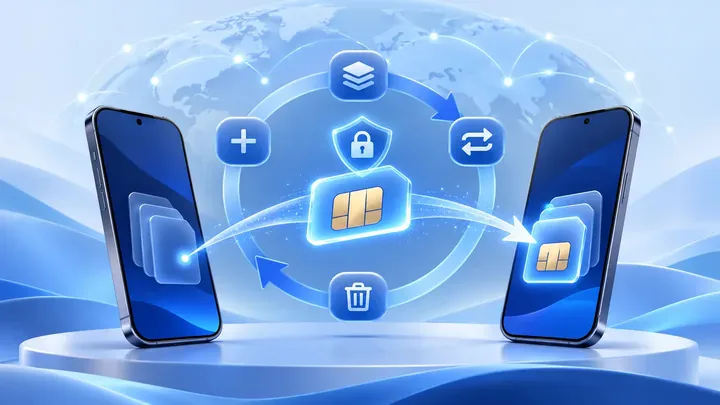
Pixel can request a SIM transfer during setup or later in Settings. The carrier must allow the move. A TPG Mobile travel eSIM is locked to its first device, so do not select it for Pixel transfer or reuse its QR code.
Key points
- For automatic Pixel transfer, Google says both phones need Android 12 or later, current Google Play Services, and a screen lock.
- The carrier still controls the line. If Pixel does not find it, contact the carrier instead of deleting the old profile.
- TPG Mobile does not allow an active eSIM to move phones. Keep it on the old Pixel and ask support about the order.
- Track the old and new phone at each stage. Do not erase the old Pixel until the new line passes a Wi-Fi-off service test.
Pixel setup can copy a large amount of data and also offer a SIM transfer. The screens sit close together, but they do different jobs. Google copies supported phone content. The carrier decides whether a mobile line can move.
A two-phone status ledger keeps that carrier handoff clear. It records which Pixel has the line before, during, and after activation.
Start a two-phone status ledger
| Stage | Old Pixel | New Pixel |
|---|---|---|
| Before | Line active | No line yet |
| Request | Approve and keep on | Waiting for carrier |
| Complete | Line inactive | Line active and tested |
Add the real time and message for each stage. If the process stops, the carrier can see the last known state instead of hearing only that “transfer failed.”
Make a separate row for every mobile line. A home eSIM may move while a travel eSIM stays on the old phone.
Ask the carrier question before the Pixel question
Google says SIM transfer can be automatic depending on the carrier. The Pixel menu is not a promise that every plan can move.
Check the carrier's current device-transfer page. Confirm the old and new model, the country, and the exact plan type. A monthly phone plan and a short data-only plan may have different rules.
If the carrier says it will issue a new eSIM instead, follow that flow. Do not force the nearby-phone option.
Keep the TPG Mobile line on its first Pixel
TPG Mobile says its QR code works once. After install, the eSIM is locked to that device. An active profile cannot move to a different phone.
Do not choose that travel line in a Pixel transfer list. Do not delete it from the old phone or scan its used code on the new one.
Send support the order number, plan dates, old and new Pixel models, and your travel date. Keep the old Pixel secure and charged while the plan remains there.
Check the Pixel readiness items
- Both phones run Android 12 or later.
- Google Play Services is up to date on both phones.
- Each phone has a screen lock.
- Both phones are charged, unlocked, and nearby.
- Trusted Wi-Fi is available.
- The carrier account login is ready.
- Both EIDs and IMEIs are saved.
These are setup needs, not proof of carrier support. Pass both checks before starting.
Copy Pixel content without treating it as line proof
Pair the phones during new Pixel setup. Choose the data to copy. Google can move supported contacts, messages, apps, files, settings, and other content.
Open one copied photo, contact, and message thread after the copy. This proves the content job. It does not prove mobile service.
If content stops halfway, newer Pixel phones may use Android Switch after setup. You do not need to erase a working eSIM just to copy a missed file.
Move one supported SIM during Pixel setup
Keep the old phone close. When setup offers a SIM, select only the carrier-approved line. Tap Transfer, then Activate.
Approve any prompt on the old phone. Wait while the new Pixel asks the carrier to activate the eSIM. Do not restart either device.
Update the ledger when the old line changes and when the new line appears. If the request fails, Google says the old eSIM can still work. Check it before doing anything else.
Use the Settings path after setup
On the new Pixel, open Settings, Network and internet, SIMs, then Add SIM. Choose Transfer SIM from another device.
Follow the nearby-phone steps and approve the correct line on the old Pixel. The words may vary by carrier and software version.
If Transfer SIM is missing or the line is not found, use Set up an eSIM only when the carrier gives you a valid new activation method. An old TPG Mobile QR code is not one.
Prove which Pixel now owns the line
On the new phone, turn Wi-Fi off. Open Settings, Network and internet, SIMs. Turn on the moved line and choose it for mobile data.
Wait for the expected carrier name. Load a small new page. If the plan includes calls and texts, test those too.
Now check the old Pixel. The moved line should no longer provide service. Add both results and times to the ledger.
Repair a handoff stuck between Pixels
If the old Pixel still works, leave its line alone. Save the error on the new phone and contact the carrier.
If the old line stopped but the new one has no service, give the carrier both EIDs, both IMEIs, the line name, and the times from the ledger. Ask which EID the line now points to.
Do not delete a pending profile, reset network settings, or factory-reset either phone before the carrier checks. Those actions can remove clues without changing its account record.
Set up travel data on the new Pixel without a false move
If the TPG Mobile plan must stay on the old Pixel, use that phone for the rest of its plan or buy a separate profile for the new device. Check that the new Pixel is unlocked and eSIM-ready.
For one stop, browse TPG Mobile eSIM destination list. For nearby countries, compare the covered places in TPG Mobile eSIM plans for border trips. Use TPG Mobile broad eSIM coverage for a route across regions.
An eligible new Pixel can use the TPG Mobile practice eSIM plan to test Add SIM and mobile-data choice. It does not carry over an old plan or balance.
Close the ledger before erasing the old Pixel
The content copy needs a pass. Each carrier-approved line needs a service pass. Account access and two-step codes also need a check.
An active TPG Mobile line on the old phone keeps the erase gate closed. Use it or follow support's advice first. Erasing the phone would remove the only allowed profile.
Once every row has a safe result, follow Google's factory-reset steps before a sale or trade-in.
Sources checked
These primary and official sources were checked before this article was written.
How the Pixel to Pixel eSIM Transfer Should Finish
A supported carrier line should work on the new Pixel and stop on the old one. The ledger should show the time, carrier name, and real service test.
The TPG Mobile travel eSIM stays on its first Pixel. It is not a missed transfer. It follows the plan's one-device rule. Keeping that exception clear protects the working travel line while the rest of the phone move goes ahead.