How to Transfer an eSIM From Android to iPhone
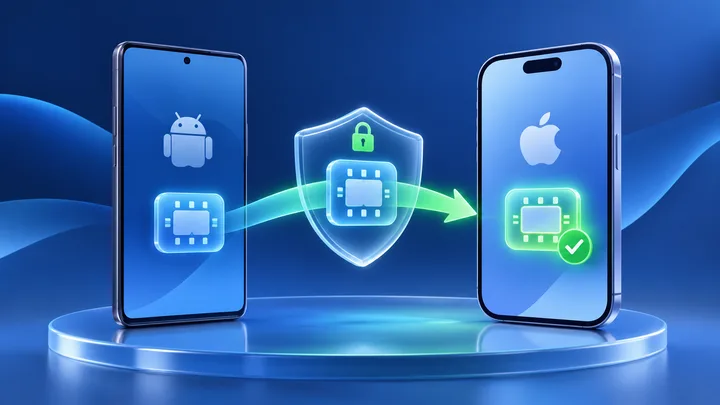
Some new iPhones can ask an Android phone to move an eSIM. The carrier must allow it. A TPG Mobile travel eSIM cannot move after install. Leave it on Android and contact support before making changes.
Key points
- Apple's direct Android transfer needs the right carrier and phones. Both phones also need current software, Wi-Fi, and Bluetooth.
- The Android line should deactivate only after a supported transfer completes. Test the iPhone before wiping or trading in Android.
- TPG Mobile says its active eSIM cannot move to another phone. Do not delete it or scan its used QR code on the iPhone.
- Plan for a short service gap. Keep booking codes, maps, and support details available offline before the handoff.
An Android-to-iPhone eSIM move is a carrier handoff. The phones start the request. The carrier picks which phone may use the line. That is why the same button works for one carrier but not another.
Travel eSIMs need extra care. TPG Mobile has a one-device rule. Its installed travel profile cannot be copied to an iPhone, even when the iPhone offers “Transfer from Android.”
Make a support card before starting
Write down both phone models and software versions. Add the carrier, plan name, and country. Save each phone's EID and IMEI.
Then open Apple's current Android transfer page. Check the carrier list and phone rules. The direct path needs a listed carrier and a phone that works with the feature. Old software or an unlisted carrier needs help from the carrier.
Save the carrier support link. A general claim that both phones “have eSIM” is not enough.
Control the four moments in the handoff
| Moment | Android line | iPhone line |
|---|---|---|
| Before request | Working | Not added |
| Pairing | Should remain available | Waiting for carrier |
| Carrier change | May deactivate | Activating |
| After proof | Inactive as expected | Working on mobile data |
The risky point is the third row. Service can pause while the carrier record changes. Do the move where trusted Wi-Fi and support access are available, not in an airport queue or taxi.
Record the local time when Android loses service and when iPhone gains it. Those two times help the carrier find a stuck request.
Stop before moving a TPG Mobile travel eSIM
TPG Mobile says an active eSIM is locked to the phone where it was installed. Its QR code can be used only once. Direct Android-to-iPhone transfer is therefore not offered for that travel profile.
Leave the line installed on Android. Contact support with the order number, plan dates, both phone models, and your travel date. Ask what choices apply to the order.
Do not delete the Android profile to “free” it. Deletion removes the local profile but does not turn the used QR code into a new code.
Prepare for a short loss of mobile service
- Download tickets, hotel details, and a local map.
- Save the carrier's support page and account number.
- Use an authenticator app or backup codes where possible.
- Do not schedule a bank login that needs SMS during the move.
- Charge both phones and connect them to trusted Wi-Fi.
- Turn on Bluetooth and keep both phones unlocked and close.
- Pause any phone trade-in until the new line works.
This small kit matters because the old line may turn off before the new phone receives a text. A second trusted device can keep the support chat open.
Start a supported move from the iPhone
During iPhone setup, choose the offered mobile-service transfer if the carrier is supported. After setup, open Settings, Cellular or Mobile Service, Add eSIM, then Transfer from Android.
The iPhone creates a pairing QR code. Scan that code with the Android phone. Choose the correct number on Android and approve the transfer.
This pairing code is not a travel eSIM activation code. It links the two phones for one session. If the screen never offers Transfer from Android, stop and ask the carrier for its approved activation method.
Use the session code when the camera cannot scan
Apple provides an Other Options path. On Android, open Google services, All services, Pair with iPhone or iPad, then Transfer eSIM. Enter the session ID and pairing code shown on the iPhone.
Use this only for a carrier and phone that support the feature. Manual pairing does not add an unlisted carrier. It only replaces the camera step.
Do not enter a TPG Mobile activation code into this screen. The session code and the provider activation code have different jobs.
Run a five-part proof test on the iPhone
- Open Cellular and confirm the expected line is listed and on.
- Select it for Cellular Data.
- Turn Wi-Fi off and wait for the carrier name.
- Load a new HTTPS page that was not already open.
- If the plan includes calls, place one short call.
Apple tells users to make a call after the transfer. A data-only travel plan cannot pass a voice test, so use a mobile-data test instead. Match the test to what the plan actually includes.
Only after proof should the Android line be inactive. Keep the Android phone untouched until that state is clear.
Diagnose a line stuck between the two phones
If Android still works but iPhone does not, the request may not have reached the carrier. Leave Android active. Save the iPhone message.
If Android stopped but iPhone still says Activating or SOS, note both times. Give the carrier both EIDs, the plan name, and the session message. Ask which EID now holds the line.
Do not delete the pending iPhone line. Do not reset either phone until the carrier checks its record. A phone reset cannot finish a stuck carrier change.
Put a new TPG Mobile plan on the iPhone when needed
If support confirms the Android travel plan cannot move, keep using it on Android or buy a separate plan for the iPhone. Check that the iPhone is unlocked and supports eSIM first.
For one stop, use the TPG Mobile eSIM plans for each destination. For a trip through nearby countries, compare the included places in TPG Mobile eSIM plans for regional travel. Longer routes can be checked against TPG Mobile international eSIM destinations.
If the iPhone is eligible, the TPG Mobile free eSIM starter plan can show where Cellular Data, line labels, and roaming controls are. It does not move the Android plan or its balance.
Retire the Android phone only after the carrier record settles
Wait until the iPhone has passed the proof test and can receive any service messages the plan supports. Confirm the carrier account shows the new device when that detail is available.
Then follow the provider's advice for the old profile. A completed supported transfer should deactivate it. Do not assume that an Android line with no bars is safe to sell; personal data still needs a proper device erase.
If the TPG Mobile line stayed on Android by design, keep that device secure and charged for the trip. It remains the only phone allowed to use that installed profile.
Sources checked
These primary and official sources were checked before this article was written.
How the Android to iPhone eSIM Transfer Should Finish
A supported move finishes with the iPhone working on the carrier and Android deactivated at the expected time. Test the service, keep a time record, and erase nothing until that proof exists.
A TPG Mobile travel eSIM follows a different finish. It stays on the Android phone because it cannot move devices. Contact support or set up a new iPhone plan. Respecting that boundary avoids losing a working profile on the eve of a trip.