How to Transfer an eSIM Between Samsung Phones
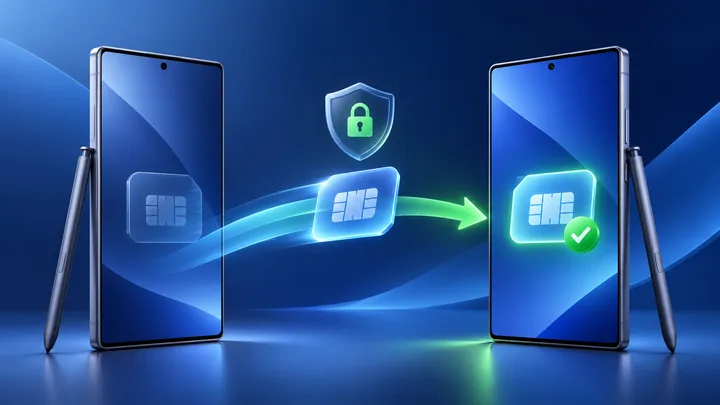
Samsung can move some carrier lines to a new Galaxy through SIM Manager. Both phones and the carrier must support the feature. TPG Mobile travel eSIMs do not move devices, even when Galaxy shows a transfer button.
Key points
- Samsung Instant eSIM Transfer is carrier-based. The menu can appear even when the exact carrier or plan is not allowed to move.
- Use the new Galaxy to create a verification code. Approve the chosen line on the old phone, then wait for carrier activation.
- TPG Mobile says its installed eSIM is locked to its first device. Keep it on the old Galaxy and contact support before changing phones.
- Smart Switch moves personal content. SIM Manager moves a supported mobile line. Test both jobs on their own.
Two Samsung phones can share the same look and still have different eSIM features. The model, software, country, carrier, phone lock, and plan all affect the transfer choice.
Treat the switch as two lanes. Smart Switch handles photos and apps. SIM Manager asks the carrier to place an approved mobile line on the new Galaxy.
Keep Smart Switch and SIM transfer in separate lanes
| Lane | Tool | What it moves | Proof |
|---|---|---|---|
| Personal content | Smart Switch | Files, settings, apps, and other supported data | Open copied items |
| Mobile service | SIM Manager | A carrier-approved SIM or eSIM line | Wi-Fi-off service test |
One lane can finish while the other fails. A full photo gallery on the new phone does not mean the carrier line moved. Signal bars also do not prove that every file copied.
Write a pass or fail result for each lane. This makes a failed switch much easier to fix.
Check the Galaxy transfer rules before setup
Open Samsung's current eSIM carrier page for your country. Find the carrier under Instant Transfer, not just under general eSIM support.
Check that both phones support eSIM and have current software. Samsung also says the new phone must be unlocked. A carrier-locked line or an inactive SIM may not be available to select.
If the carrier is missing, contact it. Do not assume that a newer Galaxy removes the carrier rule.
Mark TPG Mobile as a stay-on-device line
TPG Mobile states that an active eSIM cannot move to another phone. The first install uses its one-time QR code and binds the profile to that device.
Leave that line on the old Galaxy. Do not erase it, and do not scan the old code on the new phone. Contact support with the order number, plan dates, both models, and travel date.
Samsung's transfer screen cannot change this provider rule. If the travel line appears as an option, do not select it without written approval from TPG Mobile.
Capture the old Galaxy control panel
On the old phone, open Settings, Connections, then SIM manager. Take a private screen shot of the line labels. Note which line handles calls, messages, and mobile data.
For each line, record the carrier, phone number if present, plan end date, roaming state, and whether it may move. Hide phone numbers and device IDs before sharing any image in public.
This record lets you rebuild the same roles later. It also prevents the home line from taking over mobile data abroad by mistake.
Prepare both Galaxy phones for carrier checks
- Install all system and carrier updates.
- Charge both phones and connect them to trusted Wi-Fi.
- Turn on Bluetooth and keep the phones close.
- Sign in to the Google or Samsung account requested by setup.
- Set a screen lock on both phones.
- Save both EIDs and IMEIs.
- Keep the old phone unlocked and working.
Do the transfer before leaving home. Airport Wi-Fi, low batteries, and a short boarding window make a carrier handoff harder to repair.
Move one supported line through SIM Manager
- On the new Galaxy, open Settings and Connections.
- Open SIM manager, then Add eSIM.
- Choose Transfer SIM from another Galaxy or Android phone.
- Start the request on the old phone when asked.
- Enter the verification code shown by the new phone.
- Select only the carrier-approved line.
- Tap Transfer on both phones and wait.
Samsung says the new phone will download and activate the selected eSIM after approval. Do not leave the screen or restart a phone while the carrier is working.
Record what each phone shows after the move
Open SIM Manager on both phones. The new phone should list the moved line as active. The old phone should no longer provide service on that line.
Write the time of both changes. If the old line stops but the new line stays off, the carrier record may be between devices. Save any error code.
Do not repeat the move, delete the pending eSIM, or reset either phone. Give support both EIDs, both IMEIs, the line, and the two times.
Prove the new Galaxy has real service
Turn Wi-Fi off. Select the moved line for Mobile data. Wait for the correct carrier name and load a small new page.
If the line includes voice and SMS, make one call and send one text. A data-only plan does not need to pass a voice test. Check only the services the plan sells.
Then restore the right default lines. Abroad, keep the home line's Data Roaming off unless you chose home roaming on purpose.
Explain a missing or grey transfer option
Samsung says a transfer option can be absent when the carrier does not support it, a phone is not eligible, setup has passed that screen, or another SIM state blocks the choice. A grey line may be inactive or not fit the current network rules.
Check for updates and open SIM Manager after setup. If the option is still missing, contact the carrier with the model and software version.
Do not remove a working line to make the option appear. Use a provider-issued setup method instead.
Choose a fresh travel line for the new Galaxy
If TPG Mobile confirms the old travel eSIM cannot move, keep it on the first phone or buy a separate plan for the new Galaxy. Check its eSIM support and lock state first.
Use TPG Mobile country travel eSIM plans for one destination. Compare the exact included places in TPG Mobile travel eSIM plans by region for a multi-country route. Check TPG Mobile eSIM coverage across regions when the trip crosses regions.
An eligible Galaxy can use the TPG Mobile free eSIM trial to practise Add eSIM and line selection. It is a new profile, not a copy of the old plan.
Close both transfer lanes before erasing the old Galaxy
Open a copied file to prove Smart Switch. Run the Wi-Fi-off test to prove the carrier line. Check that account logins and two-step codes work.
If an active TPG Mobile plan remains on the old phone, do not erase it yet. Finish the plan or follow support's advice. The old Galaxy is still the only allowed device for that profile.
Once every line has a safe result, use Samsung's official reset steps before sale or trade-in. A missing signal icon is not the same as a clean phone.
Sources checked
These primary and official sources were checked before this article was written.
How the Samsung eSIM Transfer Should Finish
A carrier-approved line ends active on the new Galaxy and inactive on the old one. The new phone passes the service test, while Smart Switch has its own content proof.
The TPG Mobile travel eSIM stays on its first Galaxy. That is a planned boundary, not a transfer fault. Keeping it out of the Samsung move protects the working plan and makes the rest of the phone change easier to verify.