How to Transfer an eSIM From One iPhone to Another
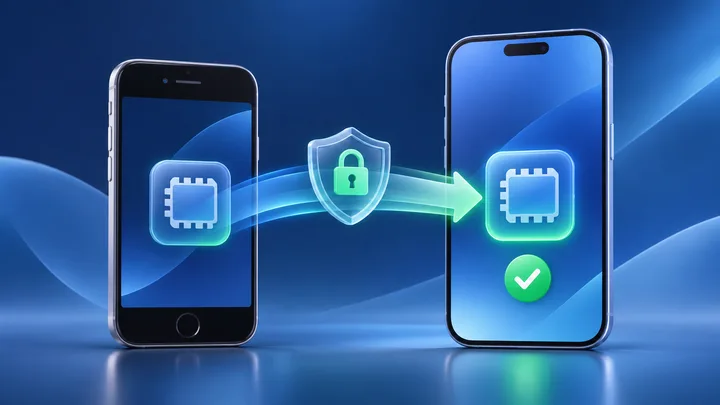
Apple's eSIM Quick Transfer can move a supported carrier line between nearby iPhones. It cannot move every travel eSIM. TPG Mobile locks an installed profile to its first device, so keep that line on the old iPhone and contact support.
Key points
- Check the carrier, not just the iPhone. eSIM Quick Transfer works only when the carrier supports it.
- List every line on the old iPhone before you start. Home, work, and travel lines may follow different rules.
- TPG Mobile says its active eSIM cannot move to another phone. Do not delete it or scan its used QR code on the new iPhone.
- A supported line stops working on the old iPhone when the new one activates. Test calls, texts, and data before erasing the old phone.
Moving to a new iPhone can look like one large copy. In truth, photos, apps, Apple Account data, and mobile lines are separate jobs. A good phone backup does not give a travel eSIM permission to change devices.
The safest method is to make a line-by-line manifest. It shows which carrier owns each line, whether it can move, and how you will prove it works on the new phone.
Make a manifest for every SIM line
| Line label | Provider | Job | Move method |
|---|---|---|---|
| Home | Home carrier | Calls and SMS | Quick Transfer or carrier help |
| Work | Work carrier | Business service | Company-approved method |
| Travel | TPG Mobile | Data abroad | Stays on first device |
Use your real labels and providers. Add the line's phone number if it has one, its plan end date, and the service you need to test.
This list stops a home line's Quick Transfer result from being applied to a separate travel line. Each provider controls its own profile.
Check Quick Transfer support for the exact carrier
Apple keeps country lists for eSIM Quick Transfer, Carrier Activation, QR setup, and carrier apps. Find the carrier under the correct country and method.
If the carrier appears only under “other activation methods,” do not expect nearby-iPhone transfer. Follow its app, link, QR, or support flow instead.
The carrier list changes over time. Check it when you switch phones. A transfer that worked for a friend in another country is not proof for your line.
Leave the TPG Mobile profile on the first iPhone
TPG Mobile says its QR code can be used once. Once installed, the eSIM is locked to that phone. An active plan cannot be moved to a different device.
Do not remove the travel line from the old iPhone. Do not try its old QR code on the new one. Deleting the profile does not reset the code.
Contact support with the order number, plan dates, old and new iPhone models, and your travel date. Ask what options apply. Keep the old phone until the plan is used or support gives a clear path.
Prepare the two iPhones without erasing either one
- Update both iPhones to the version Apple requires.
- Sign in to the same Apple Account on both phones.
- Unlock the old iPhone with its device passcode.
- Turn on Bluetooth and Wi-Fi on both devices.
- Keep the phones near each other and on power.
- Save carrier logins, account PINs, EIDs, and IMEIs.
- Download tickets and backup codes in case service pauses.
Apple's current guide says nearby transfer needs both phones on iOS 18.4 or later. The rule may change, so use the live guide shown in Sources.
Move a supported line during new iPhone setup
Place the phones together and start the new iPhone. When it offers mobile-line transfer, select only a line that the carrier lets you move.
Approve the request on the old iPhone. Enter the code shown by the new iPhone if asked. Keep both screens open while the carrier activates the line.
With newer iOS versions, Apple may allow more than one number to move. Use the manifest anyway. Do not select the TPG Mobile travel line just because it appears in a list.
Start Quick Transfer after setup when needed
On the new iPhone, open Settings, Cellular or Mobile Service, then Add eSIM. Choose a listed plan or tap Transfer From Nearby iPhone.
Confirm the move on the old phone. If a “Finish Setting Up” banner appears, open it. Apple says it may send you to the carrier's page to finish.
If no line appears, stop. Check the carrier list and contact the carrier. Do not erase the old eSIM to make the menu refresh.
Watch the exact point where the old line turns off
Apple says the old SIM deactivates when the mobile plan activates on the new iPhone. That handoff can cause a short service gap.
Write the time the old phone loses its carrier and the time the new phone gains it. If the old phone stops but the new one stays on Activating, give both times and both EIDs to the carrier.
Do not repeat the transfer while the first request is pending. Two open requests can make the support record harder to read.
Test each moved line for its real job
Use the manifest. A voice line needs an outgoing call, an incoming call, a text, and mobile data. A data-only line needs a Wi-Fi-off web test. A work line may need a company app or VPN check.
Set the right default voice and data lines. Keep Data Roaming off on the home line if you are abroad. A travel eSIM may need roaming on as its setup guide states.
Record pass or fail beside every service. Do not wipe the old iPhone until all required jobs pass.
Give the new iPhone its own travel plan
If the old TPG Mobile plan must stay on the first iPhone, you can carry that phone for travel data. If you want the new iPhone online, buy a separate compatible plan after checking its eSIM support and carrier lock.
Match one-country travel through TPG Mobile eSIM plans for each destination. For a route with several nearby stops, open the full country list in TPG Mobile eSIM bundles for several countries. Cross-region routes can be checked in TPG Mobile broad-coverage eSIM plans.
An eligible new iPhone can use the TPG Mobile free travel data trial to test installation. It is a separate plan and does not copy the old balance.
Use an erase gate before giving up the old iPhone
Mark four items: personal data copied, supported carrier lines tested, TPG Mobile plan handled, and account access checked. Erase the old iPhone only when all four have a clear result.
If the TPG Mobile travel plan remains active there, the gate stays closed. Use the plan first or ask support what to do. Erasing it early can destroy the only installed copy.
When the phone is truly ready to leave you, follow Apple's sale or trade-in steps. Choose the eSIM erase option only for lines that have already moved or ended.
Sources checked
These primary and official sources were checked before this article was written.
How the iPhone to iPhone eSIM Transfer Should Finish
Each supported carrier line should work on the new iPhone and stop on the old one. Your manifest should show proof for calls, texts, or data based on what each plan includes.
The TPG Mobile line is the planned exception. It stays with its first iPhone because the travel profile cannot move devices. Keeping that rule visible is what prevents a smooth phone upgrade from turning into a lost travel plan.