How to Transfer an eSIM From iPhone to Android
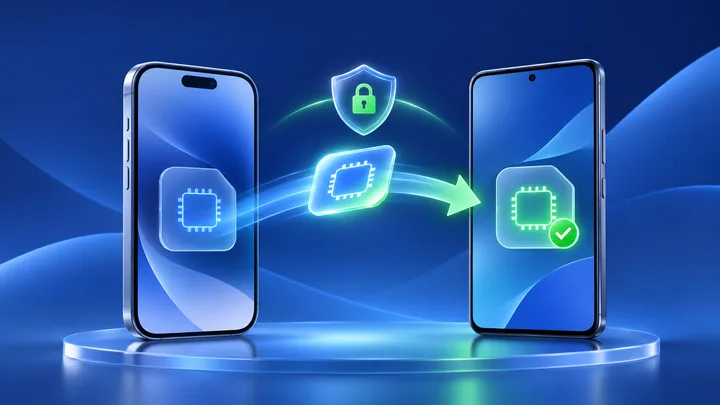
Some new Pixel and Galaxy phones can ask an iPhone to transfer a supported carrier eSIM. The button does not make every plan portable. For TPG Mobile travel eSIMs, the installed profile cannot be moved to another phone, so contact support before deleting it.
Key points
- Start with the carrier rule. Google and Samsung support iPhone transfer only for certain carriers, devices, and software versions.
- TPG Mobile says an active eSIM cannot move to another phone. Keep it on the iPhone and contact support before buying, deleting, or rescanning anything.
- Moving photos and apps is separate from moving mobile service. A successful Android data copy does not prove the eSIM moved.
- If a carrier supports the move, keep both phones powered, unlocked, near each other, and online. Test the Android line before erasing the iPhone.
A new Android phone may show “Transfer SIM from iPhone.” That screen is an offer to ask the carrier for a move. It is not a tool that can copy any eSIM chip to chip.
This matters for travel plans. TPG Mobile locks an installed eSIM to the device that first used its QR code. An iPhone-to-Android switch therefore needs a different plan from a supported home-carrier transfer.
Pass three gates before touching either phone
| Gate | Question | Who decides |
|---|---|---|
| Android | Does this model show iPhone eSIM transfer? | Google, Samsung, or the phone maker |
| Carrier | Does the carrier support cross-platform transfer? | The mobile carrier |
| Plan | Can this exact eSIM move after install? | The plan provider and its terms |
All three must say yes. A modern phone cannot overrule a provider's one-device rule. A carrier that supports one monthly phone line may not support a short travel-data plan.
Check the carrier's live list on the phone-maker page. Do not rely on a video made for a different country.
Use the TPG Mobile rule for a travel eSIM
TPG Mobile's transfer FAQ gives a direct answer. Its QR code works once. After install, the eSIM is locked to that device. An active profile cannot be moved to a different phone.
That means you should not delete the TPG Mobile line from the iPhone in hope that Android will find it. Do not scan the old QR code on Android. The code is already used.
Contact TPG Mobile support with the order number, iPhone model, Android model, plan status, and travel date. Ask what choices apply to that order. Keep the iPhone working until there is a clear answer.
Keep phone data and mobile service apart
Android setup can copy contacts, photos, messages, some apps, and other personal data. Mobile service is a separate step that needs carrier approval.
A cable copy can finish while the eSIM stays active only on the iPhone. The Android phone may then work on Wi-Fi but have no mobile data. That is not a failed photo transfer. It is an unapproved mobile-line move.
Use two checks. Open a copied photo to prove the personal-data move. Then turn Wi-Fi off and load a new page to prove the mobile line. Do not treat one result as proof of the other.
Prepare both phones for a supported carrier move
This section is for a carrier that clearly lists your plan as supported. It is not a workaround for the TPG Mobile device lock.
- Update iOS and Android to the versions required by both makers.
- Charge both phones and connect them to trusted Wi-Fi.
- Turn on Bluetooth and keep the phones close.
- Keep the iPhone unlocked and its eSIM active.
- Set a screen lock on the Android phone.
- Know the carrier login and account PIN if one is used.
- Save the Android EID and IMEI before starting.
Google says the old eSIM can keep working when an attempted transfer does not complete. That is another reason not to delete it by hand.
Read the Pixel transfer screen as a carrier request
On a supported Pixel, open Settings, Network and internet, SIMs, Add SIM, then Transfer a SIM from another phone. Choose iPhone and follow the pairing steps.
Google says the experience changes by carrier and by where the device was bought. Current cross-platform paths may also require a recent iOS version. If the iPhone choice is missing, the phone or carrier may not support it.
Stop at an unsupported message. Contact the carrier. Do not choose “set up a new eSIM” and feed it an old travel QR code unless the provider tells you to.
Read the Galaxy option the same careful way
On a supported Galaxy, Samsung shows the path under Settings, Connections, SIM manager, Add eSIM, then Transfer SIM from iPhone. The Galaxy displays a pairing QR code for the iPhone to scan.
That QR code pairs the two phones for the transfer session. It is not the TPG Mobile activation QR code. Keeping those codes separate avoids a costly mix-up.
Samsung also says instant transfer is for supported carriers. If network verification fails, save the message and call the carrier rather than repeating the session many times.
Use a go or no-go record before the switch
Write one line for each item: Android model, Android version, iPhone model, iOS version, carrier, plan name, carrier support link, and the planned switch time.
Mark GO only when the carrier names the plan or confirms it in writing. Mark NO-GO when the carrier is absent from the supported list, the plan says one device, the old phone is missing, or the trip starts before support can reply.
For TPG Mobile, mark NO-GO for direct transfer. The useful next step is to keep the old line or arrange a fresh Android plan, not to force a copy.
Prove a supported transfer before erasing the iPhone
- Confirm the line appears under Android SIM settings.
- Select it for mobile data.
- Turn Wi-Fi off.
- Check the expected carrier name and signal.
- Load a small new page.
- Make a call or send a text only if the plan includes them.
- Check whether the old iPhone line became inactive as expected.
Write the time and result. Keep the iPhone for at least the carrier's stated test period. Do not erase or trade it in while the Android line is still pending.
Set up the Android travel plan without forcing a transfer
If support says the old TPG Mobile plan cannot move, leave it on the iPhone for that trip if practical. For the Android phone, choose a new plan built for the route.
Start with the TPG Mobile single-destination eSIM plans. For several stops in one part of the world, compare TPG Mobile travel eSIM options by region. For a trip across regions, check the named countries in TPG Mobile eSIM options across regions.
Check the Android EID, carrier lock, and eSIM support before paying. An eligible phone can use the TPG Mobile free travel eSIM trial to learn the Android setup flow. The trial is a new plan, not a transfer of the iPhone plan.
Recover from an attempt that stopped halfway
First check both SIM lists. If the iPhone line still works, leave it alone. Save the Android error and contact the carrier.
If neither phone works, use Wi-Fi and tell the carrier the exact transfer time, both EIDs, both IMEIs, and any session number. Ask which device the service record now points to.
Do not factory-reset either phone. Do not remove unrelated eSIMs. Those actions erase clues without fixing the carrier record.
Sources checked
These primary and official sources were checked before this article was written.
How the iPhone to Android eSIM Move Should End
A real transfer ends with carrier approval, working mobile service on Android, and the old profile becoming inactive in the expected way. A copied photo library or a visible transfer button is not enough.
For TPG Mobile, follow the provider's one-device rule. Keep the installed plan on the iPhone, ask support about the order, or buy a suitable new Android plan. That answer is less flashy than a hidden workaround, but it protects both the plan and the trip.